iPhone GPS speedometer: set up a reading in Safari
For an occasional speed check, an iPhone can use a browser speedometer without an App Store download. Begin with Safari, allow location for the session and keep the tool visible. Follow the link below for the gauge; this page explains setup and its limits.
Open the speedometer in your browser
Open the actual tool in Safari
Use the link above on the iPhone, choose your unit and press Start on the tool. Accept its location prompt only when you are ready to measure. If you came from an in-app preview, open the address in Safari to make the test repeatable. Stay still in an open area for the first position. This is a GPS speed check, not the Speedometer browser-performance benchmark, and it does not measure internet download speed.
Give Safari a usable location
In Settings, check Privacy & Security, then Location Services. Enable location for the browser or website entry available on your iOS version and allow precise location where that option is shown. The website may also ask for permission in Safari. An approximate location can be sufficient for a weather page but is a poor starting point for a short movement test. Menu wording can change; check the setting for the browser you actually opened rather than assuming every browser shares permission.
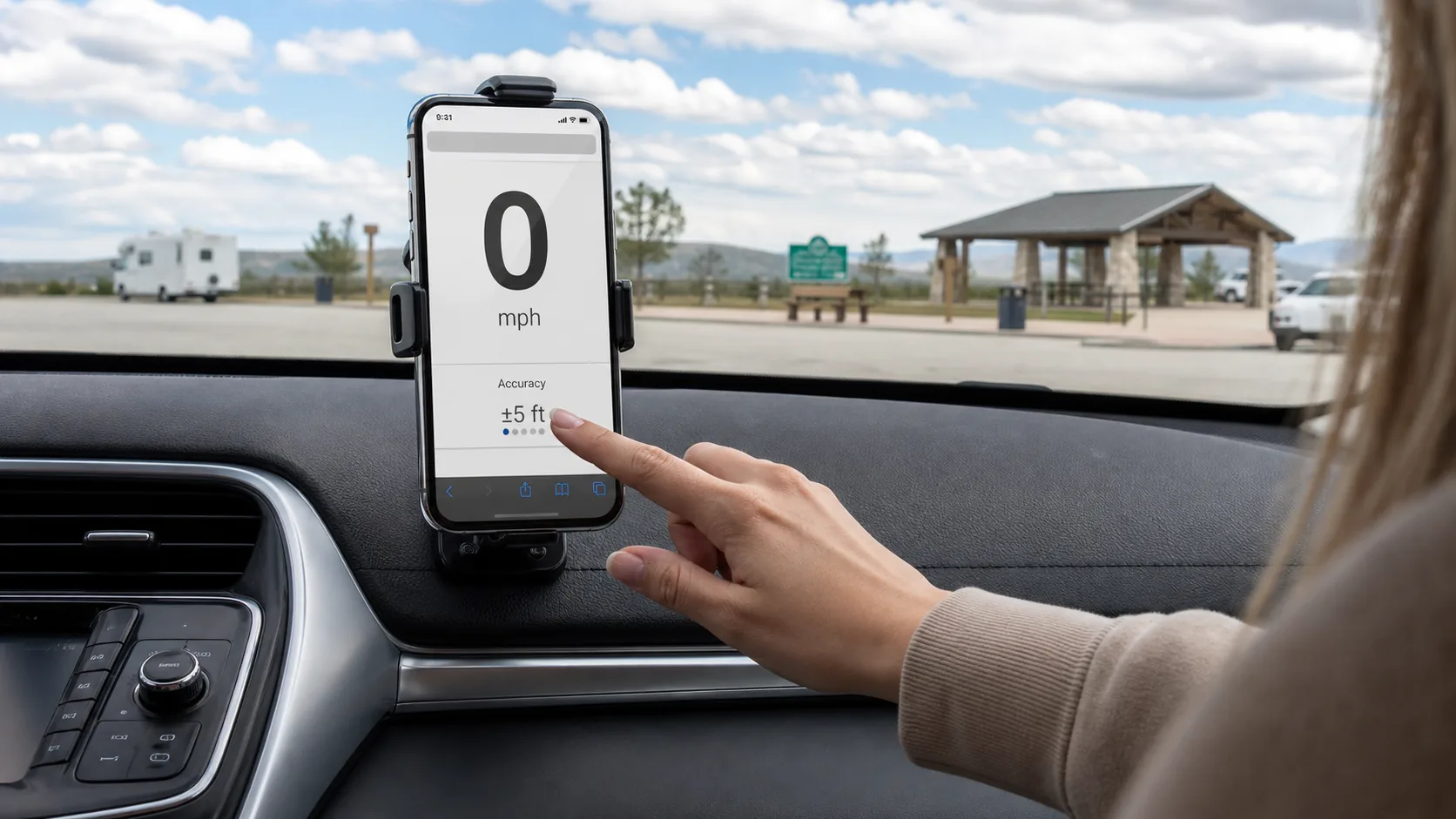
Check movement, not just a number on the screen
After a position arrives, try a short walk somewhere safe and review the result after stopping. You want a series that responds to movement, not a single dramatic maximum. Inside a building or between tall walls, an apparently stable number can still be unhelpful. The browser’s location service supplies observations; the site cannot turn an obstructed signal into an independent precision instrument. For a vehicle comparison, let a passenger observe at steady speed and read the dedicated accuracy guide before drawing conclusions.
Treat screen lock and app switching as interruptions
A visible Safari session is the sensible baseline. Do not assume that the speed keeps updating through screen lock, a switch to Maps or an extended call. When you return, check for a fresh location before reading the number as current. A retained trip summary is not proof that every part of the journey was measured. If you need reliable locked-screen recording, evaluate a recorder designed for that workflow instead of trying to turn a web shortcut into one.
Add a home-screen icon only after testing
Safari can add a website to the Home Screen through its sharing options; recent versions also offer an option to open it as a web app. Use the live tool’s address when adding it, not this setup article. Launch the new icon and run another stationary permission check before your next trip. The icon makes access convenient; it does not add CarPlay, a Lock Screen widget or guaranteed offline recording. Keep your usual launch context if you want to find previous local summaries.
Finish the session and decide what to keep
Once stationary, stop tracking on the tool and review distance, elapsed time, average and maximum together. Copy or share the summary deliberately if you need a record. The current implementation keeps recent summaries in local browser storage rather than saving a GPS route to an account; clearing website data can remove them. Loading the site, analytics and the measurement itself are different privacy questions. Read the privacy guide before treating local calculation as a promise that no site traffic exists.
| Condition or factor | What it means |
|---|---|
| Quick check as a passenger | Safari with a visible tool and a fresh location is a suitable starting workflow. |
| Home-screen icon opens this article | Add the live tool’s address instead; an article contains no gauge. |
| Need speed over a navigation app | The web tool does not supply an overlay or CarPlay integration. |
| No mobile coverage ahead | Load and test beforehand; do not assume a closed page will reopen offline. |
Technical references: Apple: Location Services and precise location; Apple: add a website as a home-screen app; W3C: browser geolocation specification.
Questions about this setup
Is there an App Store download for this guide?
No download is needed to use the linked browser tool. This guide does not offer an iOS app or a list of tested App Store products.
Does adding an icon make GPS more accurate?
No. It changes how you open the tool, not the phone’s receiver, the surroundings or the quality of the location observations.
Can I lock the iPhone and keep a complete trip record?
Do not rely on that with this web tool. Use a visible session for a check; for continuous background recording, use a product designed and tested for it.
Will the same setup work on an iPad?
Not necessarily. iPad models differ in location hardware, and a Wi-Fi-only model should not be assumed to provide the same GPS experience as an iPhone.
Why does Safari ask for permission again?
An earlier choice may have been temporary or belonged to another site or browsing context. Review the current request and your settings instead of granting broad access automatically.