Android GPS speedometer: browser setup and first test
You can check your speed on an Android phone with a location-enabled browser; installing a separate speedometer is optional. This guide gets you from the first permission prompt to a usable reading. The live gauge is on the linked tool, not inside this article.
Start with a short browser session
Open the live tool in Chrome on your Android phone, choose km/h or mph, then press Start and allow location when asked. Do this while stationary with a clear view of the sky. If a messaging or social app opened the link in its own viewer, reopen it in your normal browser so you know which app holds the permission. A zero before movement is not a failed installation; look for a received location and a current status first.
Check the three permission layers
The phone’s Location switch, Android’s permission for your browser and the website’s own permission are separate checks. In Android, inspect the browser under app permissions and allow location while you use it; enable precise location if offered. Then check zigmaty’s location permission in the browser’s site settings. Menu names differ between manufacturers. Granting another navigation app access does not grant Chrome access, and accepting a site prompt cannot override a device-level block.
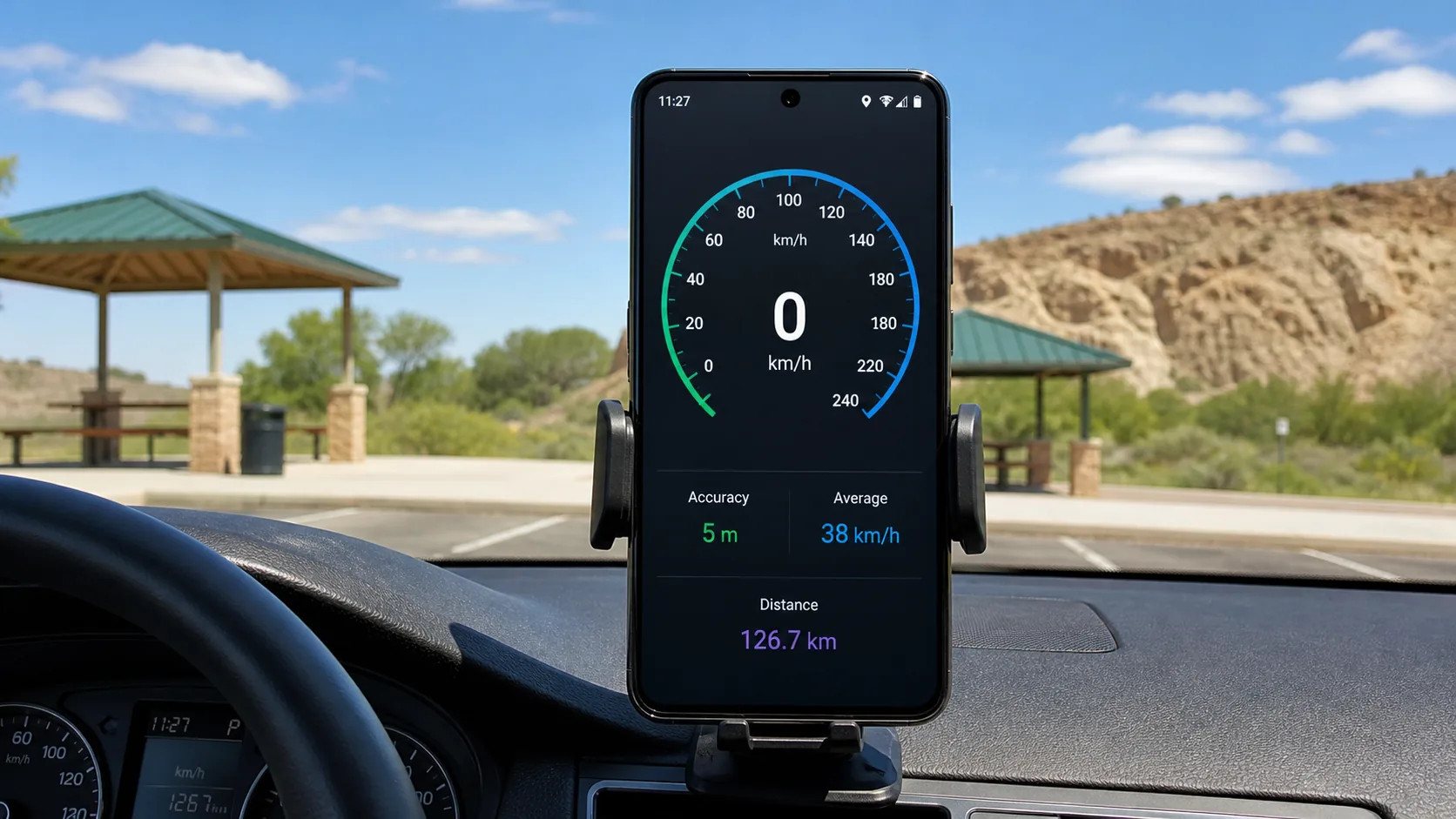
Make the first test easy to judge
Once the status shows a location, make a short walk in an open, safe area. Start the session before walking, put the phone away securely if watching it would distract you, and stop before reviewing the result. Look for a plausible change from rest to movement across several updates, not one perfect number. A small wander at rest or a slow response at walking pace is not enough to diagnose faulty GPS. Repeatedly jumping values need a signal check before a longer trip.
Prepare the screen before a longer journey
Set units, theme and any alert while parked. A passenger can watch a test; a driver should not interact with the display. Keep the browser visible during measurement and do not assume that switching to navigation or locking the phone leaves a complete recording. Screen brightness, charging and direct sun also matter to usability: choose a readable setting and a secure position without covering your view or controls. A quick stationary check after changing a setting is safer than adjusting it mid-trip.
Decide whether a home-screen shortcut is useful
After the browser test works, use Chrome’s install or home-screen option if offered to make the tool easier to reopen. This is web access, not an APK download and not Android Auto integration. Keep one launch method for a trip: an ordinary tab, another browser and an installed web app may not behave identically for permissions or saved data. A shortcut does not improve satellite reception or promise background tracking. Choose a dedicated recorder if a locked-screen track is essential.
Separate poor reception from a setup failure
A denied-permission message points to access settings. A page that loads but waits for a position needs a location and reception check. A session that stops updating only after another app opens points to foreground continuity. These are different problems, so do not begin by clearing every browser setting. Try one change at a time while stationary. Keep an internet connection for first loading; a previously loaded page may work through a coverage gap, but offline relaunch is not guaranteed on every device.
| Condition or factor | What it means |
|---|---|
| Site asks for location | Approve only if you want to run the measurement; no measurement is needed to read this guide. |
| Another app gets GPS but Chrome cannot | Check Chrome’s own Android permission and the permission for this website. |
| Readings stop after the screen locks | Return to the foreground and check the status; do not treat the gap as a recorded route. |
| Need Android Auto or background recording | These are not features supplied by this browser guide or its shortcut. |
Technical references: Google: Android app location permissions; Google: Chrome website location; Google: install a web app on Android.
Questions about this setup
Do I need to download an APK?
No. The linked speedometer works in a compatible browser. An optional home-screen shortcut is not a requirement for the first test.
Will it work on every Android phone?
There is no model-by-model compatibility guarantee. Try an up-to-date browser with location enabled and test reception outdoors before relying on the display.
Does the phone need a SIM card?
A SIM card is not what measures GPS speed. You still need a way to load the website, and actual location availability depends on the phone and its settings.
Should I turn off all battery protections?
No. First test with the page visible. Change a specific browser setting only when the observed problem warrants it, rather than disabling protections across the phone.
Does this put a speedometer on Android Auto?
No. Opening or installing the web tool does not add an Android Auto app or integrate it with the car’s dashboard.